
Your First Steps
You just finished setting up your tools — now you're going to make your first change with Claude Code. This page covers each step of that process, plus what to do if something goes sideways.
Using the Terminal
The terminal is a text-based way to talk to your computer. It looks old-school, but it's what every developer uses daily — and it's where Claude Code lives.
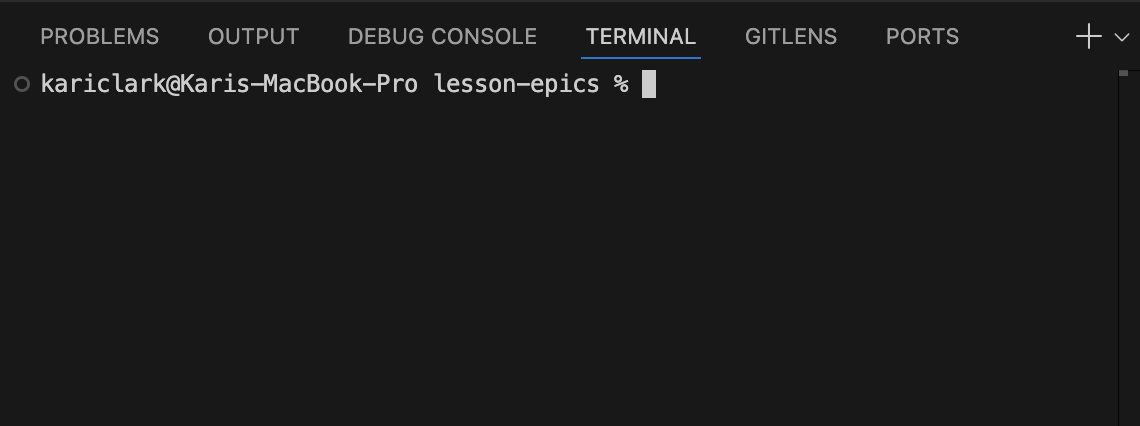
In VS Code, the terminal is built in. You don't need to open a separate app. Press Ctrl+`(backtick key, top-left of your keyboard) to open it. You'll see a blinking cursor — that means it's ready.
It's Not Working
Terminal didn't open›
Press Ctrl+`(backtick key, top-left of keyboard) to open the terminal. If that doesn't work, go to the VS Code menu: View → Terminal.
I see a terminal but it looks wrong›
As long as you see a blinking cursor and can type, it's working. The terminal might show your username, a folder path, or a % or $symbol — that's all normal.
Starting Claude
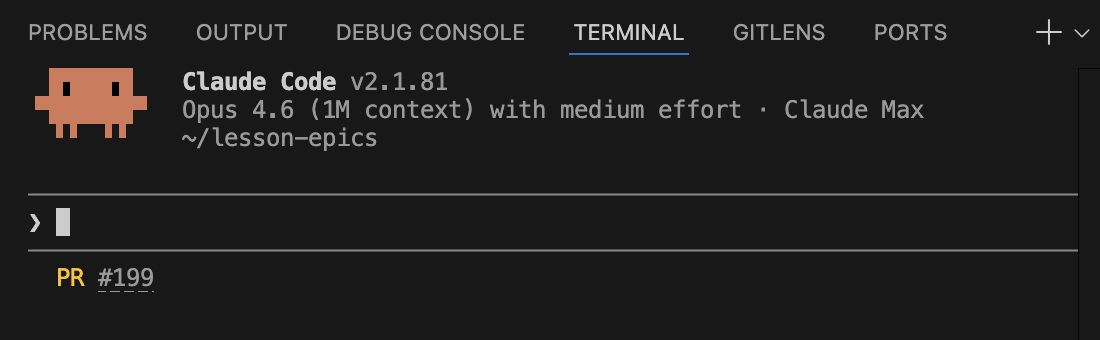
To start Claude Code, type claudein the terminal and press Enter. You'll see an orange Claude icon appear — that means it's ready for your instructions.
It's Not Working
Terminal didn't open›
Press Ctrl+` (backtick key, top-left of keyboard) to open the terminal.
"command not found"›
Claude Code isn't installed yet. Go back to the setup wizard and make sure the Tools step completed successfully. If it says everything is installed, try closing and reopening VS Code — sometimes the terminal needs a fresh start to see new tools.
Claude asks you to log in›
That's normal the first time. A browser window will open — sign in with your Anthropic account (the one with your Claude Pro subscription). Once you sign in, come back to VS Code and Claude will be ready.
Terminal closed?›
Press Ctrl+` to reopen it, then type claude again.
Working with Claude
Once Claude is running, you give it instructions by typing (or pasting) a prompt and pressing Enter. Claude reads your code, figures out what to change, and edits your files directly. You'll see text scrolling in the terminal as it works — that's Claude thinking out loud.
When Claude finishes, you'll see the cursor come back. That means it's done and waiting for your next instruction.
It's Not Working
Where do I paste?›
Click into the Claude terminal on the right, press Cmd+V, then hit Enter.
Nothing is happening›
Make sure you pasted the prompt and pressed Enter. You should see text scrolling in the terminal. If it's still blank, Claude might not be running — type claude and try again.
Claude asked a question›
That's normal. Read what it says and type your answer, or just press Enter to accept the default. Claude sometimes asks for confirmation before making changes.
It doesn't look right›
No worries — you can always ask Claude to fix it. Just type what's wrong: "The credit is in the wrong spot, can you move it to the bottom?" Claude is good at adjusting when you tell it what you want.
Previewing Your Changes
After Claude makes a change, you can preview it in your browser. Click the Preview button in the Vibecheck panel to launch a local version of your site. The URL will start with http://localhost— that means it's running on your computer, not the internet. Only you can see it.
You can hit Preview anytime while you work to check your latest changes. Your live site hasn't changed — this is just a local copy for testing.

It's Not Working
Nothing happened when I clicked Preview›
The preview tab might have opened behind VS Code. Check your Dock for a browser icon, or press Cmd+Tab to switch apps. You can also try opening http://localhost:3000 directly in your browser.
I see an error page›
That's usually a code issue, not a Preview issue. Go to your Claude terminal and ask: "My site is showing an error when I preview it — can you help?" Claude will read the error and fix it.
What's localhost?›
Localhost means "this computer." When you see http://localhost:3000 in your browser, it's loading the site from your own machine — not from the internet. Nobody else can see it. It's a safe place to test changes before they go live.
Saving Your Work
After Claude makes changes, those changes only exist on your computer. Clicking Save creates a checkpoint and backs it up to GitHub — like a snapshot you can always go back to.
This uses a tool called gitunder the hood. You don't need to learn git yet — Vibecheck handles it for you. Just think of it as "save to cloud."
Saving does not change your live site. Your live site only updates when you click Ship.

It's Not Working
Save failed›
Check the error message. If it says "nothing to commit," Claude might not have made any changes yet — go back and make sure Claude finished working. If you see a different error, ask Claude: "I tried to save my work but got this error: [paste the error]."
It says "saved locally"›
Your changes are saved on your computer but didn't make it to GitHub. This usually means your internet connection dropped or GitHub wasn't connected. Click Try againto push to the cloud. If it keeps failing, ask Claude: "I can't push to GitHub — can you help?"
What is git?›
Git is a tool that saves snapshots of your code — like version history in Google Docs. Every time you save, git remembers exactly what your code looked like at that moment. If you ever need to go back, you can. You don't need to learn git commands yet — Vibecheck does it for you behind the scenes.
Still stuck? Contact us →